How it works
- Each note block is a form with
class="noodle"anddata-courseid/data-sectionidvalues that generate a unique cookie key (noodle_<sectionid>_<courseid>). - Include a hidden
<input type="hidden" name="course-name">inside every form so the value is stored and used for exports. noodle.jsrestores note text on load, handles auto-save and manual save, and injects the floating export button.- Auto-save: Notes save two seconds after typing stops; status updates accordingly.
- Manual save: Click the "Save Notes" button to save immediately.
- Every save records a timestamp and section order for in-page status and exports.
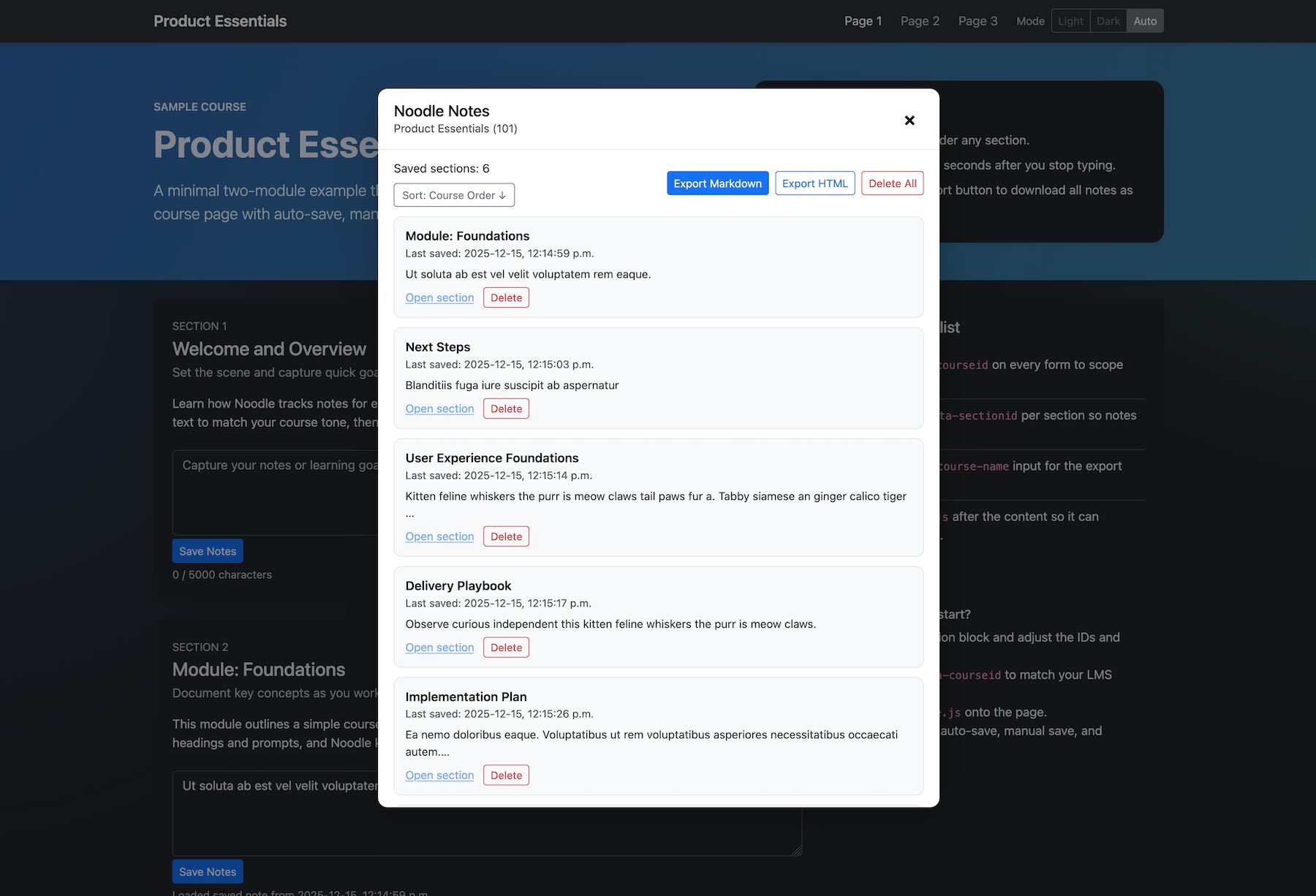
- A single "Noodle Notes" button is fixed to the bottom-left corner. Click it to view all notes, sort by recently saved or course order, and export as Markdown, HTML, or Word.
- Course Order sorting: Organizes notes across multiple pages. Use optional
data-page-orderattribute to specify page sequence, or let pages without it sort alphabetically.
Files
| File | Description |
|---|---|
sample-course.html |
Sample course landing page with two noodle note forms. |
noodle.js |
Vanilla JS helper that manages cookies, status, exports, and the floating button. |
README.md |
This guide. |
generator.html |
Form builder that outputs ready-to-paste noodle form markup. |
Open sample-course.html in a browser to see the complete demo in action.
New
Need snippets fast? Use the Noodle Form Builder.
Enter a course name, add sections, and copy the generated forms with the right data attributes and hidden course-name input. Paste into your page and include noodle.js once.
Adding note forms
Use this accessible form structure anywhere you want notes saved in the browser.
<form class="noodle" data-courseid="86" data-sectionid="section1" data-sectiontitle="Introduction" data-page-order="1">
    <label for="notes-section1" class="sr-only">
        Notes for Section 1: Introduction
        <span class="sr-only">(saved locally in your browser)</span>
    </label>
    <textarea id="notes-section1"
              class="form-control"
              placeholder="Capture your notes..."
              maxlength="5000"
              rows="4"
              autocomplete="off"></textarea>
    <input type="hidden" name="course-name" value="B.C. Provincial Government Essentials">
    <button type="submit" class="btn btn-sm btn-primary">
        Save Notes
    </button>
</form>
Accessibility features
- Labels: each textarea has an associated label; use
.sr-onlyto keep it screen-reader visible. - ARIA descriptions:
aria-describedbylinks to hint text. - Character limit:
maxlength="5000"is enforced. - Autocomplete: set to
offsince notes are unique per learner. - Button text: prefer "Save Notes" for clarity.
- Status messages: script adds
role="status"with polite announcements. - Character counter: warns at 75%, 90%, and 100% of cookie capacity.
Form attributes
- Required:
data-sectionid- unique ID for each note section (e.g.,"intro","lesson-1"). - Required:
data-courseid- shared across all pages in a course to group notes together. - Optional:
data-sectiontitle- human-readable name shown in the modal and exports. - Include
noodle.jsat the bottom of any page that uses these forms.
Course Order Sorting
The modal's "Course Order" button sorts notes by page order and section position.
- Optional:
data-page-order- Specify page order explicitly (e.g.,data-page-order="1"for intro,data-page-order="2"for foundations). All forms on a page should use the same value. - Pages with
data-page-orderappear first, sorted numerically. - Pages without
data-page-orderappear after, sorted alphabetically by URL. - Within each page, sections appear in document order (automatically tracked).
Next steps
See sample-course.html for a live example with two sections and the floating export button already in place.
Copy the snippet above into your course pages, adjust IDs and titles, then include noodle.js to handle saving and exports.